Switching Between 2D/3D Views
Switching Between 2D/3D Views
Purpose
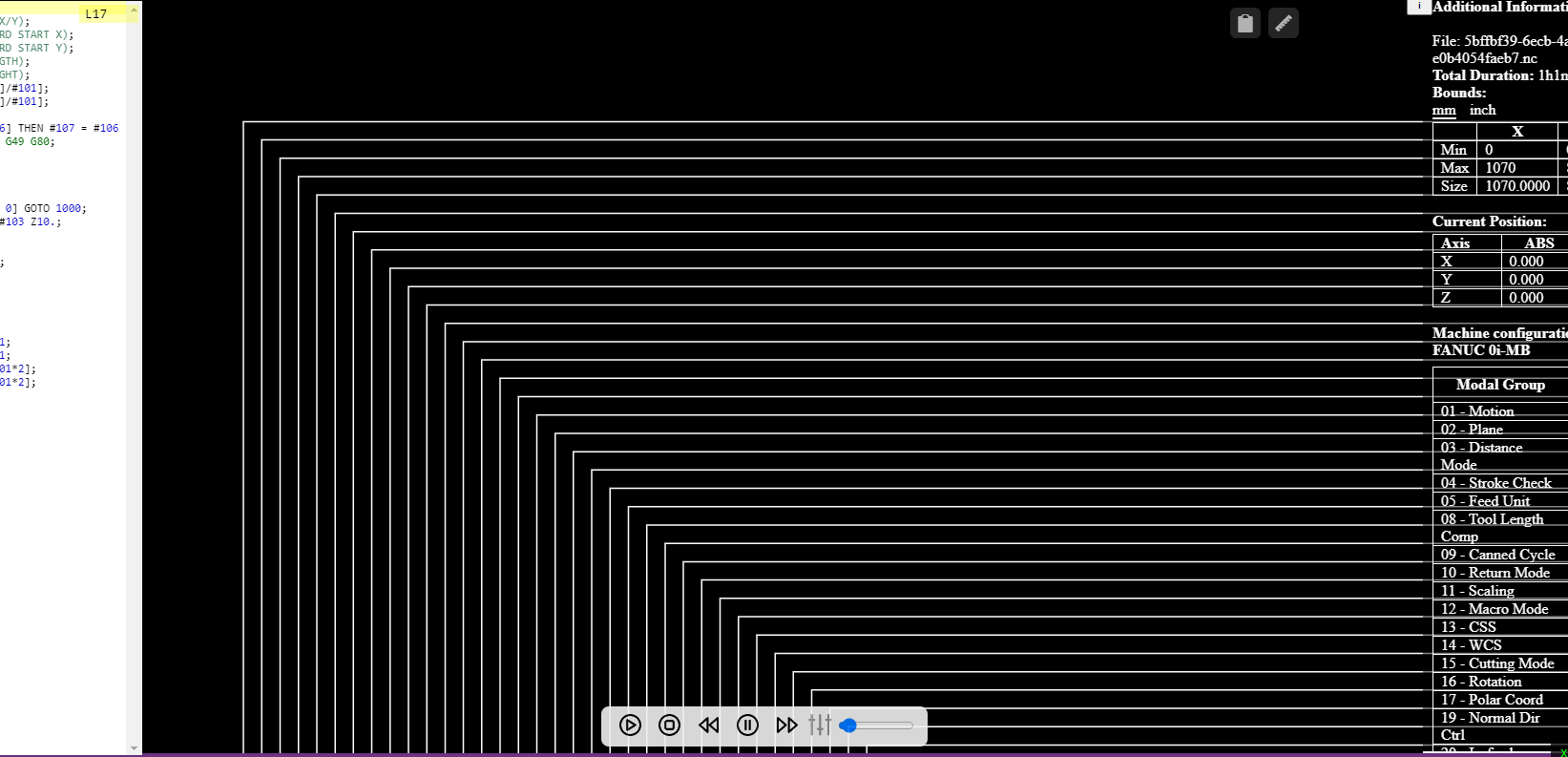
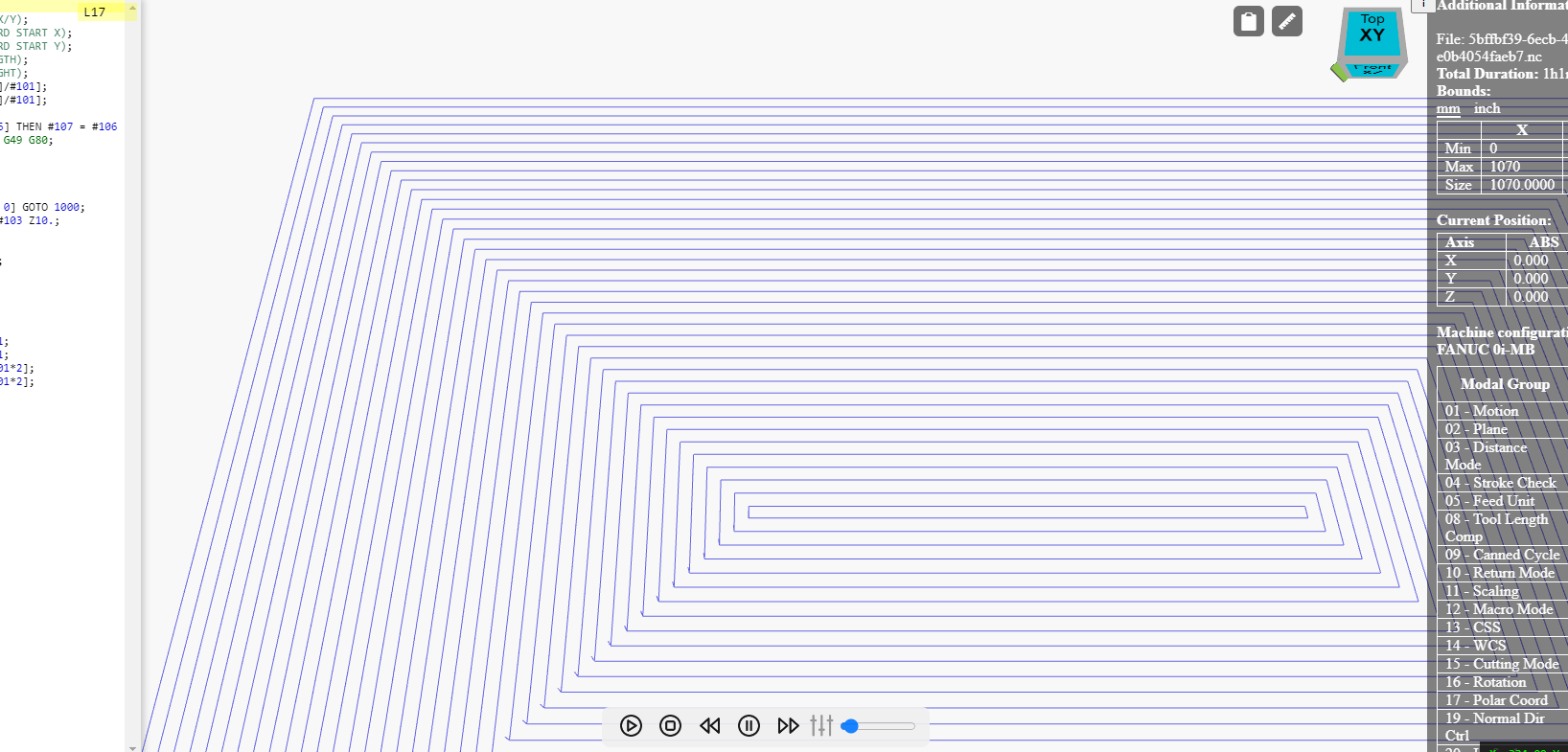
This feature allows the user to instantly switch between the flat 2D representation of the toolpath and the full 3D visualizer in NCPlayer. It provides convenient analysis of the CNC program depending on the task:
- 2D View — for precise inspection of the toolpath projections on the selected plane.
- 3D View — for a comprehensive overview of the entire machining process in space.
Location
- Main menu: View → 2D View, View → 3D View
- Control panel above the simulation window: 2D View and 3D View buttons
How It Works
When selecting 2D or 3D mode, NCPlayer:
- Saves the current camera position and zoom level.
- Switches rendering between TwoDView (top view with panning and zooming) and ThreeDView (full 3D view with rotation, panning, and zooming).
- Updates the display of the toolpath, materials, grid, and toolpath trace according to the selected mode.
- Enables or disables the ViewCube (for 3D mode) if necessary.
Usage
- 2D View — ideal for checking X/Y coordinates, analyzing flat contours, and verifying feeds and movements without the “noise” of 3D rendering.
- 3D View — used for visualizing complex spatial machining, assessing cutting depth, and working with multiple axes.
Example Scenario
- The user loads a CNC program for 5-axis machining.
- For the initial geometry check, 3D View is selected.
- For a detailed check of the contour projection on the XY plane, the user switches to 2D View.
- After adjustments, 3D View is enabled again for the final visual assessment.
NCPlayer by MEBLEOS © 2026