Simulation Tools
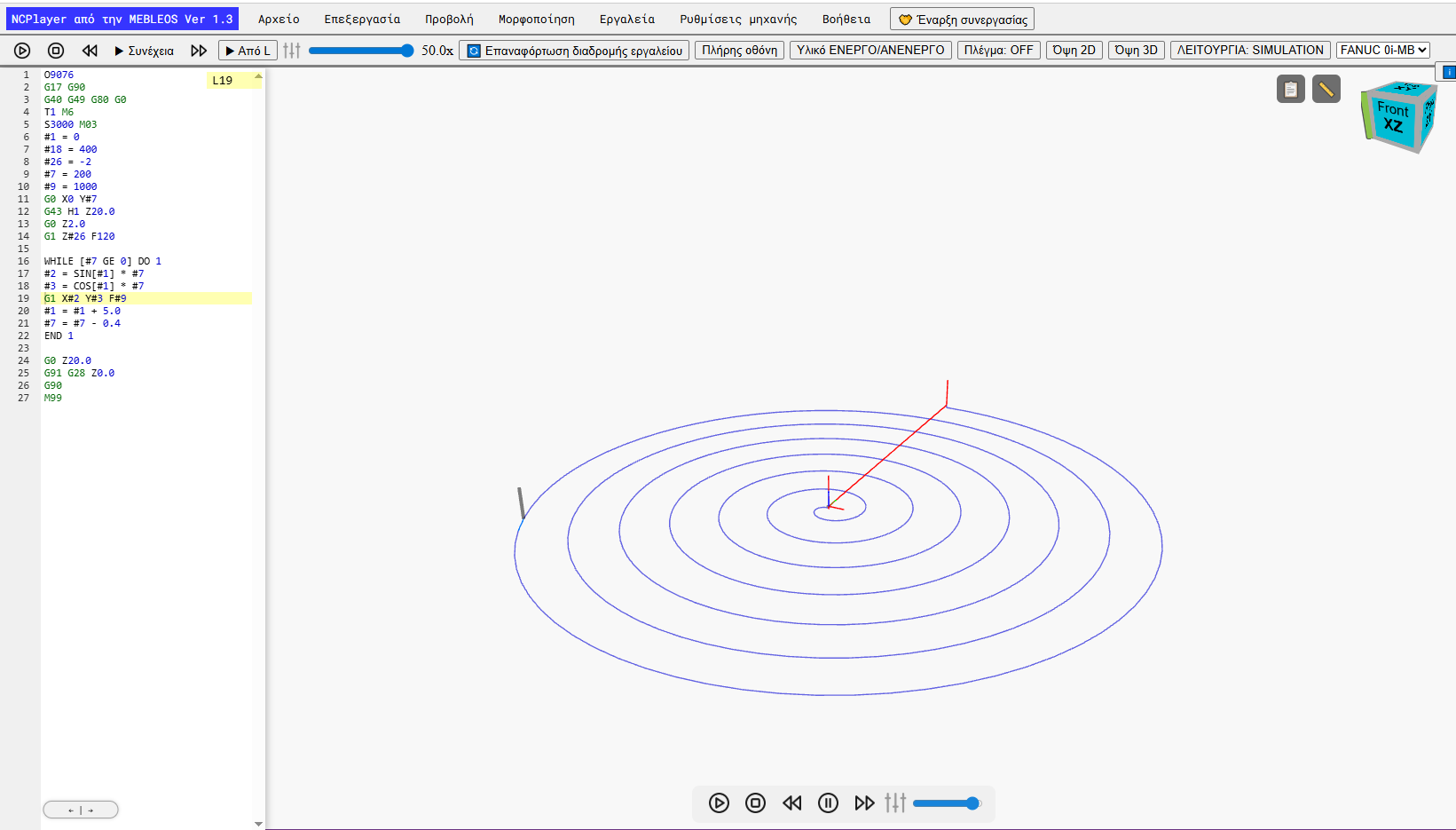
The NCPlayer simulation tools panel is designed for controlling playback, analysis, and navigation through the G-code toolpath. All buttons are duplicated in the top toolbar and in the central simulation block (under the 3D/2D scene), making them convenient to use in different viewing modes.

Key Buttons
- ▶ Start — starts the G-code simulation from the beginning of the program or from the selected line (when using “From L”).
- ⏸ Pause — temporarily pauses the simulation, allowing you to continue from the current position.
- ⏹ Stop — stops the simulation and returns the tool to its initial position.
- ⏭ Forward — step-by-step program execution (one command per click).
- ⏮ Back — step-by-step reverse along the toolpath (undoing recent steps).
- ▶ From L — starts the simulation from the current editor line (the L number is set by clicking on the code).
- 🔄 Reload — reloads the toolpath without refreshing the page.
- 🌐 Modes — switches between SIMULATION (3D visualization) and INSPECTION (toolpath analysis and code navigation) modes.
- ⛯ View — selects the viewing plane (XY, XZ, YZ), isometric view, or positions the camera above/below.
- 🔍 Speed — slider for adjusting the simulation animation speed.
- 🚩 Trail — toggles the display of the tool’s traveled path on/off.
- 🗖 Fullscreen — toggles the simulator between fullscreen and windowed mode.
Hints & Hotkeys
- Hovering over a button displays a tooltip with its name and hotkey.
-
Main commands can be triggered with the
F2 + keycombination (see the Hotkeys section). - Camera control in 3D mode: rotate — LMB, pan — Shift+LMB, zoom — mouse wheel.
NCPlayer by MEBLEOS © 2026