Printing Viewport
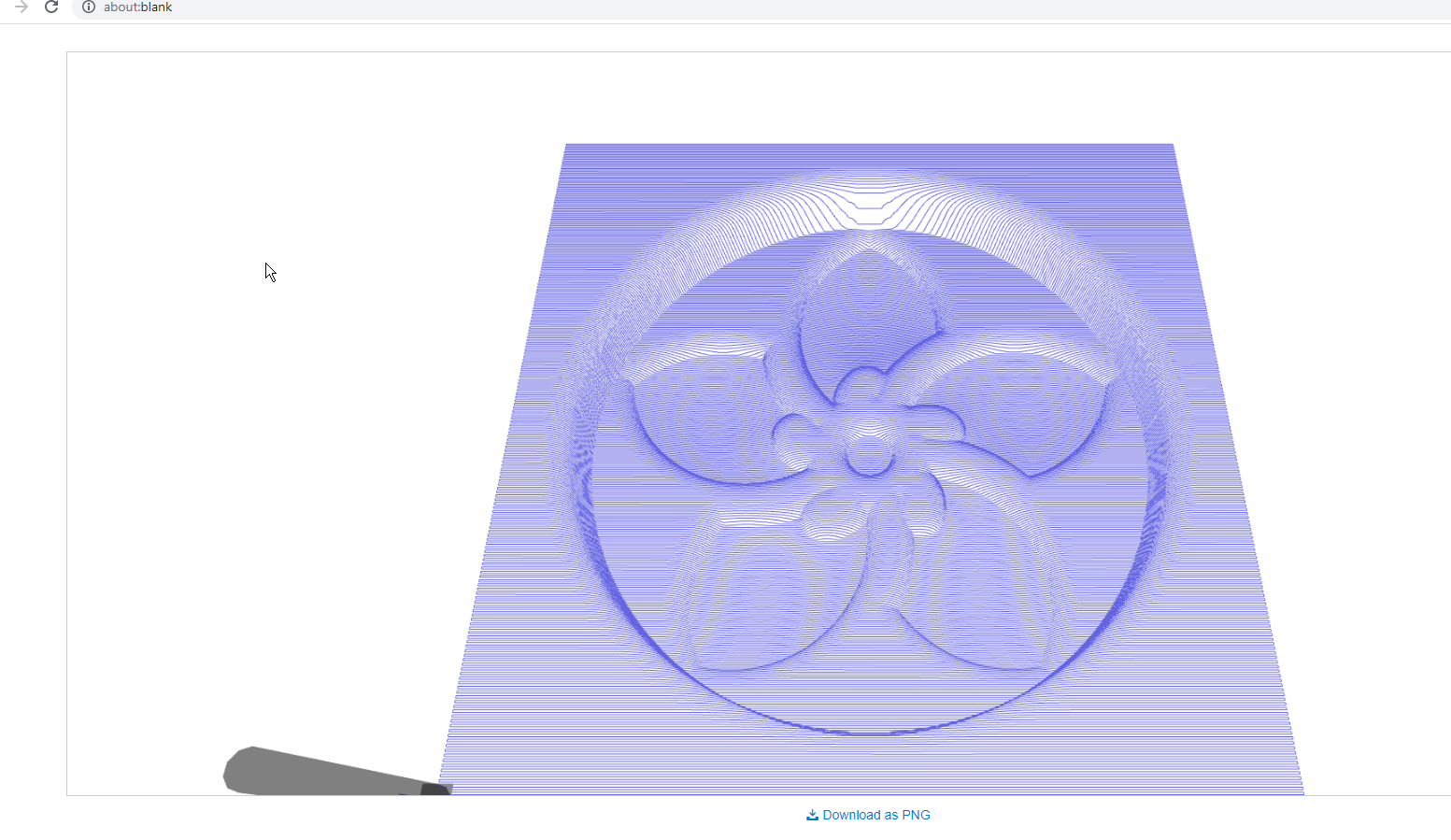
NCPlayer includes a Viewport Printing feature, allowing you to print the current toolpath and model view displayed in the simulation window. This is particularly useful for documenting machining processes or creating clear visual materials for reports and presentations.
How to Print the Viewport
- Ensure that the 3D/2D display window is loaded and the CNC program is visualized.
- Adjust the zoom level, camera orientation, and visibility of elements (grid, toolpath, stock model) as desired.
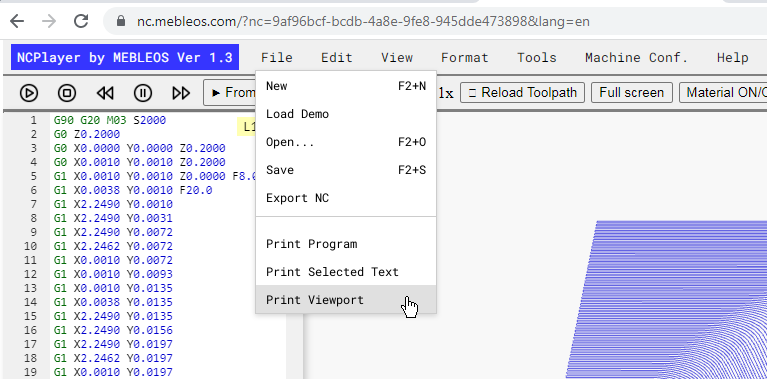
- Click the Print Viewport button in the simulation toolbar.
- In the preview window, select your printer or choose to save the image as a PDF.
- Confirm printing. If needed, you can also download the image file.
Features
- Only the visualization area (3D or 2D) is printed — the code editor and other interface elements are excluded.
- If fullscreen mode is enabled, the printout will match the current zoom level and camera position.
- UI elements such as buttons, panels, and cursors are not included in the printed image.
NCPlayer by MEBLEOS © 2026