NCPlayer Interface
The NCPlayer service features a convenient and intuitive interface that allows you to quickly load and analyze G-code, start the simulation, and adjust display settings. Below is an overview of the main interface elements.
1. Top Toolbar
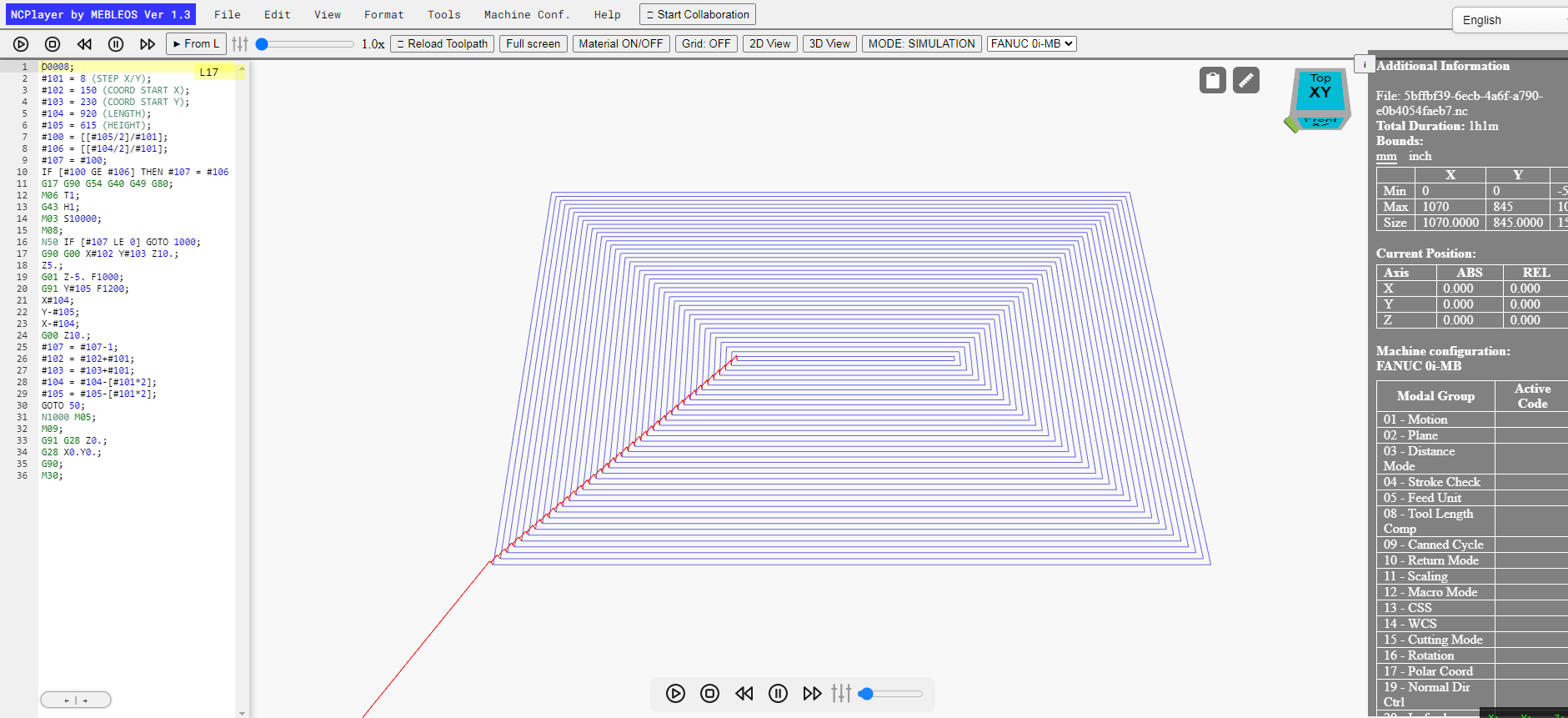
The top toolbar contains the main menu and quick access buttons:
• File — load, save, and select demo programs.
• Edit — code formatting tools (add spaces, remove comments, block numbering).
• View — switch between 2D and 3D display modes.
• Tools — additional functions (search, ruler, path measurement).

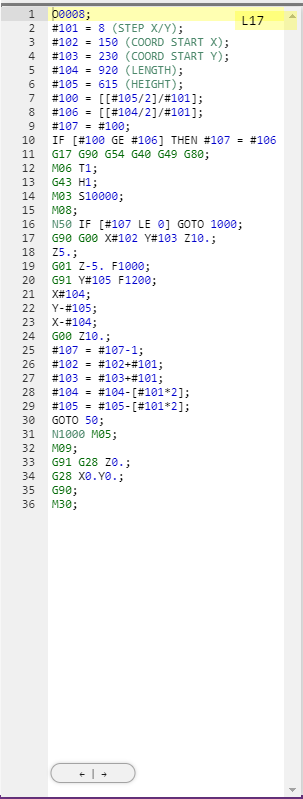
2. G-code Editor
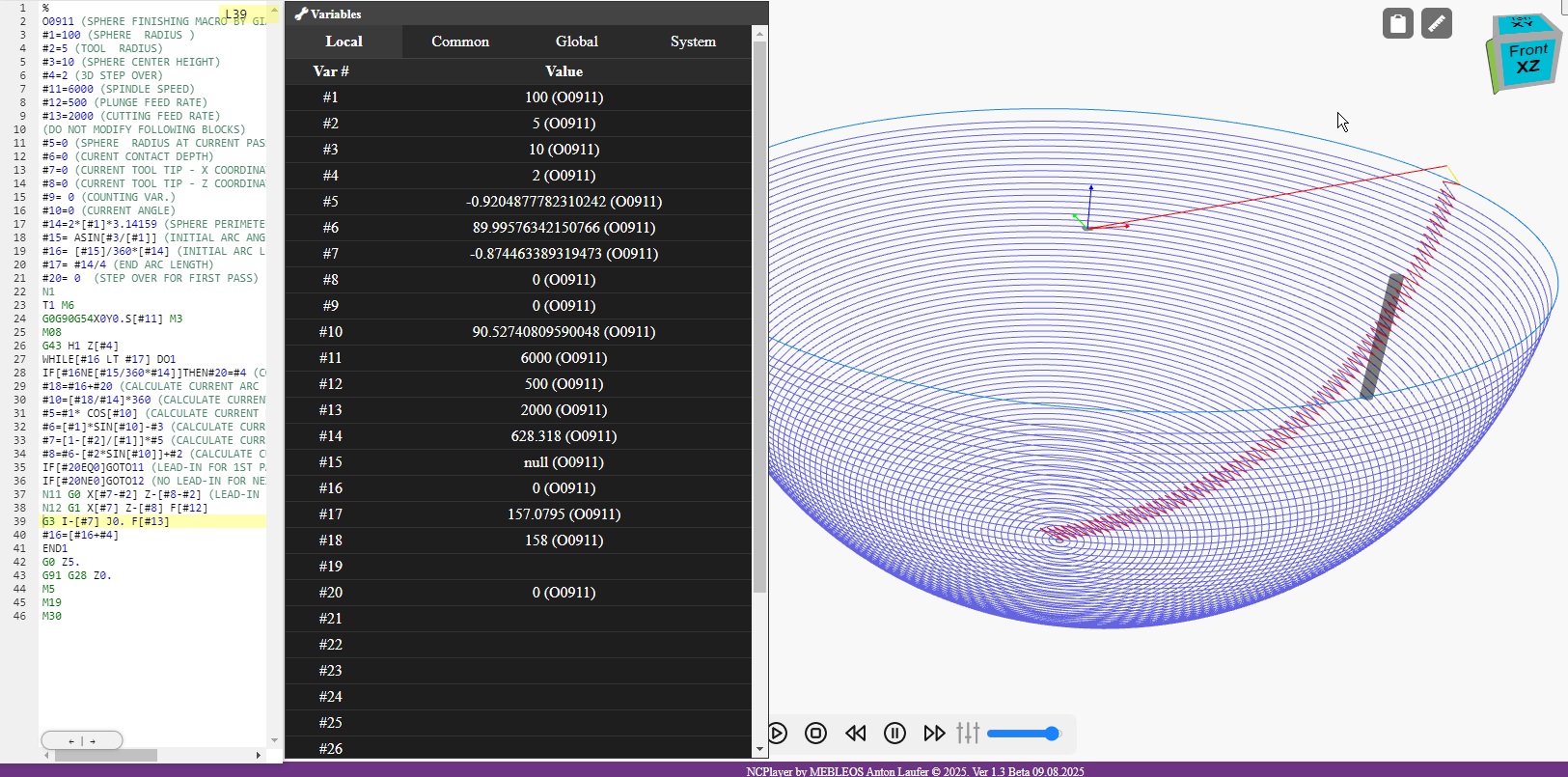
On the left side of the window is the G-code editor with syntax highlighting and line numbering.
It supports:
• Highlighting the active line during simulation.
• Jumping to a line by clicking on the toolpath.
• Code formatting directly in the editor.
• Automatic restoration of the last session.
3. Visualization Area
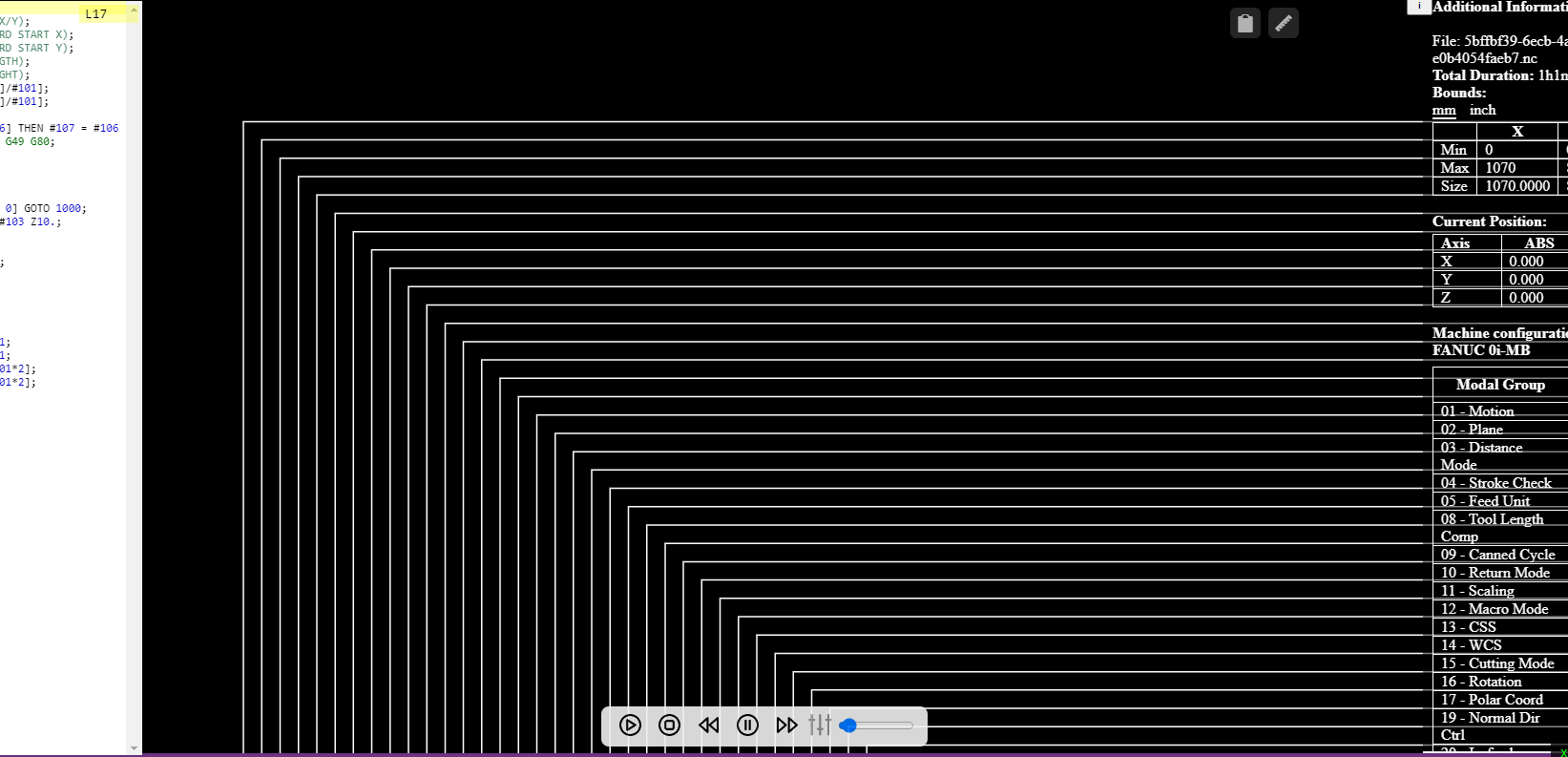
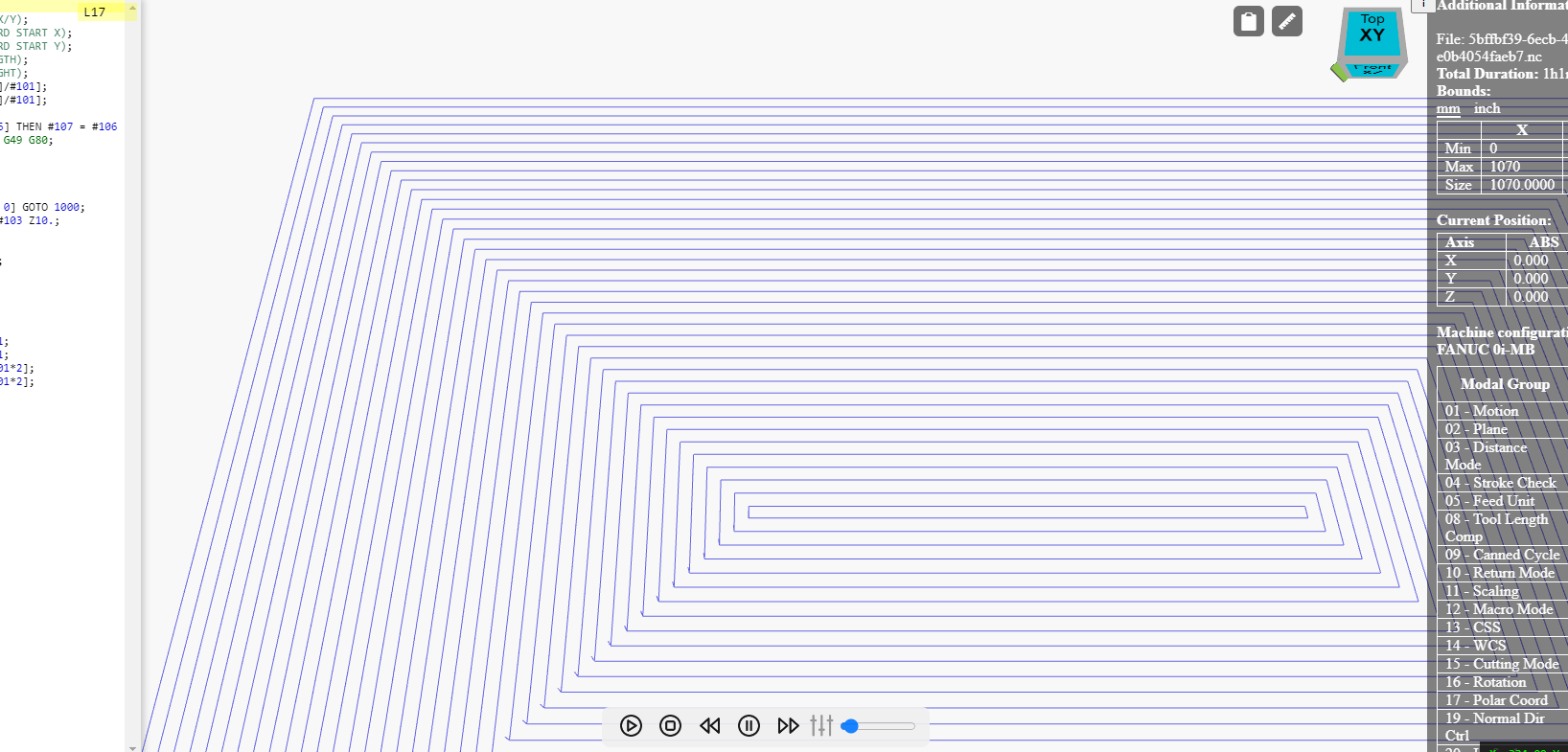
On the right is the visualization area displaying the toolpath:
• In 3D mode — realistic motion model with rotation, zoom, and panning.
• In 2D mode — top view for detailed XY-path analysis.
• Color differentiation of G0/G1/G2/G3 moves.
• Ability to hide/show certain elements (tool, stock, coordinate grid).
4. Simulation Control Panel
The control panel is located below the visualization area and contains:
• Start, Pause, Reset, and Step buttons for line-by-line execution.
• Speed adjustment slider.
• Current line indicator Lxxx.
• Start from the current position button (From L).

5. Information Panels
Additional panels include:
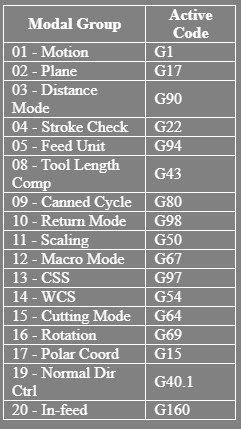
• Modal Groups — show currently active G/M/S/T/F/H/D codes.
• Variable Table — real-time list of macro variable # values.
• Statistics — path length, machining time, command count.
6. Settings and Themes
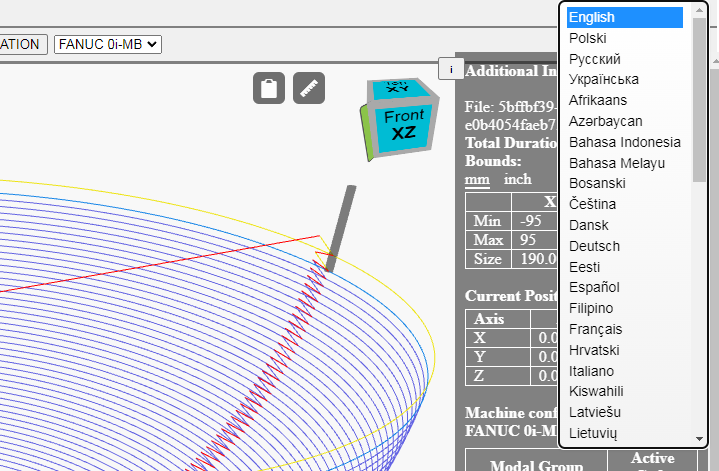
In the top-right corner is the language selector.
All settings (view mode, theme, display options) are saved in localStorage and restored on the next launch.