Search Tool in the NC Program Code
In NCPlayer, the Find Tool window allows you to quickly locate G-code fragments in the editor. Three methods are available: General Search, In selection, and By line range. The window can be opened via Tools → Find menu or the F2 + F hotkey.
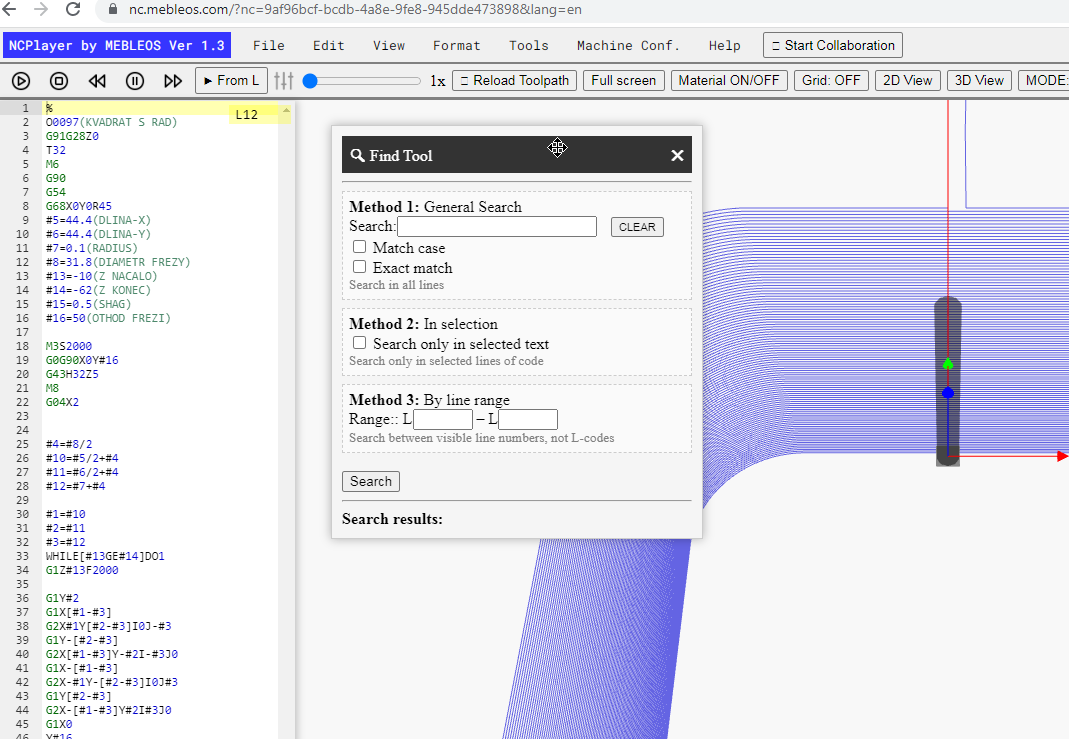
Method 1: General Search
General Search scans the entire text of the editor.
-
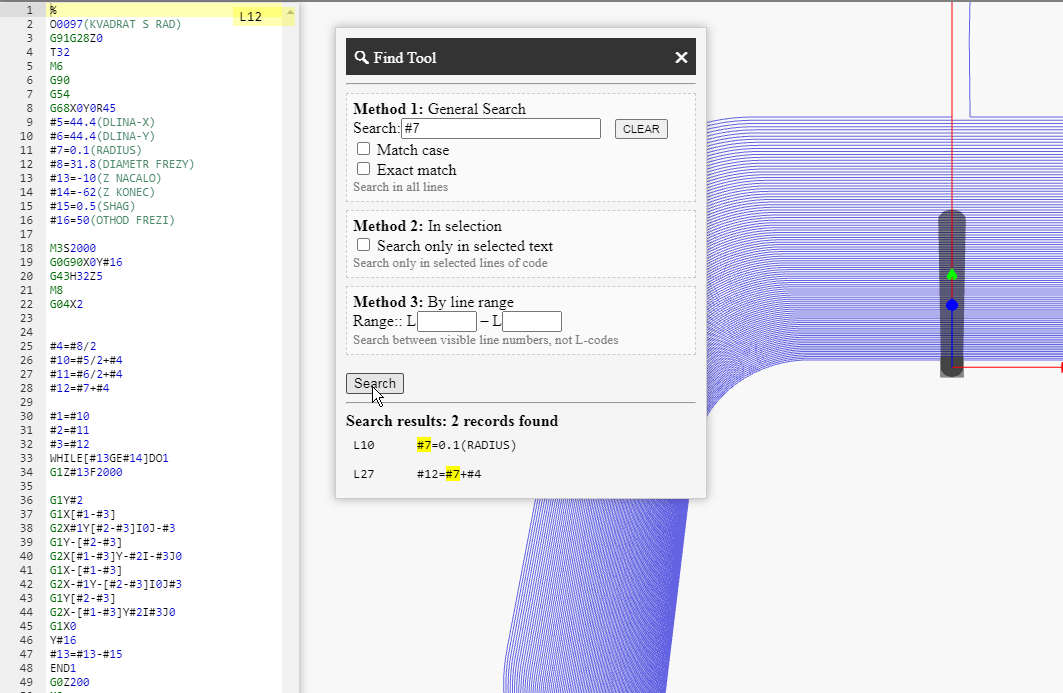
Search: input field for the search string. Supports searching by letters/numbers as well as partial command strings
(e.g.,
G43,F300,IF [). - CLEAR — clears the input field and previous results.
-
— case-sensitive search.
When enabled,
G1≠g1. -
— exact string match without partial hits.
Useful for finding whole tokens (e.g., only
G0, but notG00/G01). - Search in all lines — the search is performed across all lines of the current program.
Method 2: In selection
Searches only within the selected fragment of code. Convenient when you need to search in one section/subprogram or in several lines of a cycle.
- First, select the desired lines in the editor with your mouse.
- — limits the search area to the selection.
- Search only in selected lines of code — confirmation that the search will not go beyond the selected lines.
- The Match case and Exact match parameters from Method 1 are also applied if enabled.
Method 3: By line range
Searches within a range of visible editor line numbers (not by block numbers like Nxxx or Lxxx in the program).
Useful when you need to scan, for example, only lines 120–300 of the current file.
- Range: L [from] — L [to] — enter the editor’s line numbers (displayed to the left of the text). The range is inclusive: both the “from” and “to” lines are included in the search.
-
Search between visible line numbers, not L-codes — reminder that this refers to editor lines,
not
N/LG-codes inside the program. - If the field is empty — search the entire file (as in Method 1).
- Invalid values (e.g., letters, negative numbers, “from” greater than “to”) are ignored — the range is not applied.
Execution and Results
- Search — starts the search considering the selected method and options (case and exact match).
- Search results — at the bottom of the window, the found matches are displayed with line numbers and a short text snippet.
- Go to line: clicking a result moves the editor cursor to the corresponding line and highlights it; the simulation area scrolls to this position if necessary.
- Repeat search: change the query/flags and click Search again — the list will refresh.
Tips
-
To find only commands like
G0(without catchingG01), enable Exact match or add a space/end-of-line in the query (e.g.,G0). -
To find all occurrences of variable
#100regardless of case, disable Match case — this will also find matches in comments and with different letter cases. - To narrow down analysis to a subprogram, use In selection or By line range so you don’t have to scan the entire file.
- Clear the query and results with the CLEAR button.
NCPlayer by MEBLEOS © 2026