Enable Toolpath Trace
The Enable Toolpath Trace feature in NCPlayer is designed to display the complete movement path of the tool within the simulator scene. When enabled, the workspace will show a persistent visualization of all traversed toolpath segments during the simulation.
Purpose of the feature
- Allows you to see the overall machining picture, including both completed and upcoming moves.
- Helps analyze the machining sequence and verify the correctness of the toolpath.
- Useful for detecting errors in the NC program (such as unnecessary moves or missed areas).
How it works
When the simulation starts, NCPlayer records every tool movement coordinate (including
rapid moves G0, feed moves G1, and arcs G2/G3).
When the toolpath trace option is active, all these lines and arcs remain visible
on the screen until the simulation ends or is restarted.
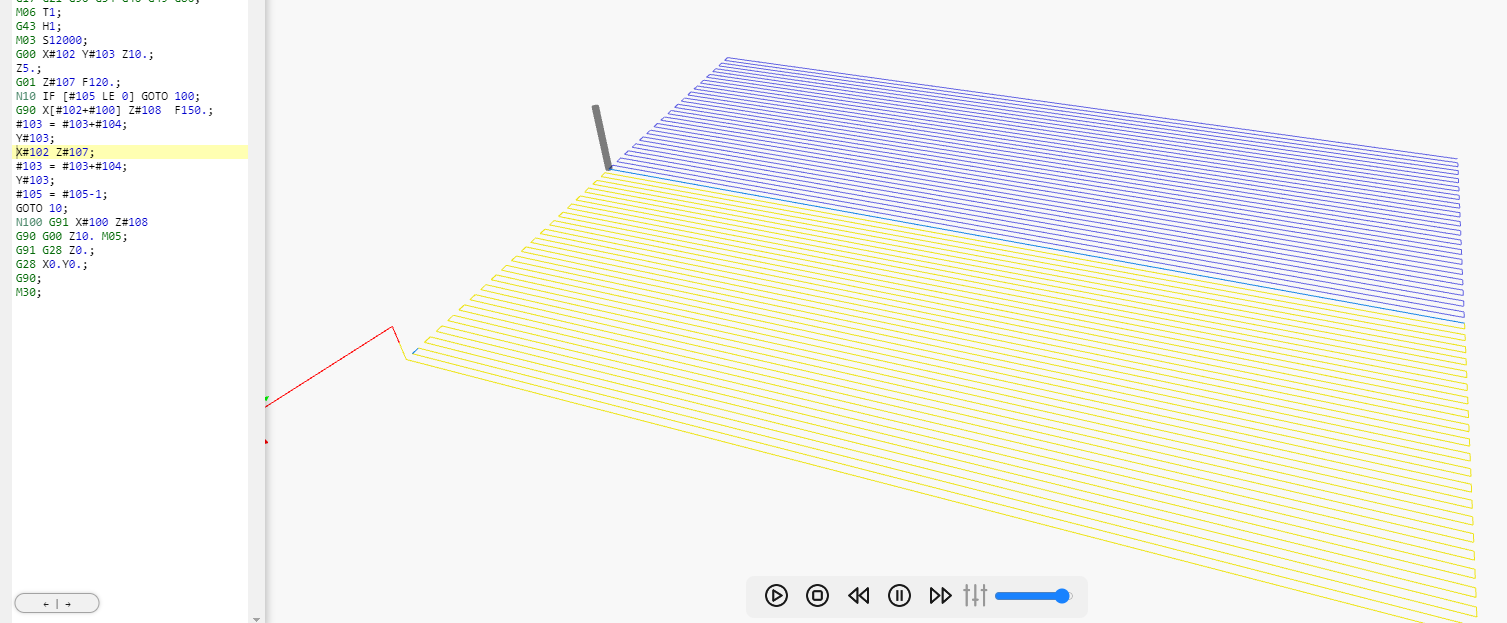
Features
- The color of the lines may differ depending on the type of movement (rapid, feed, arc).
- The toolpath trace remains until the toolpath is reloaded or the program is changed.
- Disabling the option during the simulation removes all already drawn trace lines.
When to use
- When you need to thoroughly analyze the machining order.
- For visual verification of toolpath optimization.
- For educational purposes, to clearly demonstrate the differences between
G0,G1,G2, andG3codes.
NCPlayer by MEBLEOS © 2026