Manual Selection of Display Mode
NCPlayer offers a flexible system for switching model display views, allowing the operator to choose the optimal angle for analyzing the toolpath or the tool itself.
Views from the View Menu
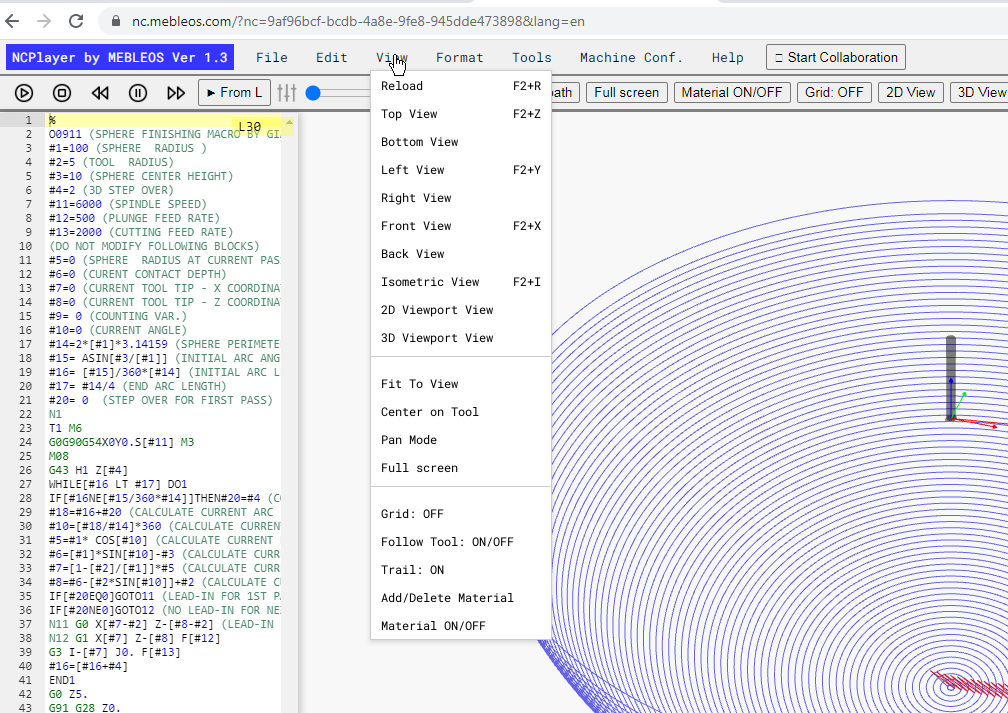
The View menu provides the following views, each of which can be activated either through the menu or via hotkeys:
- Top View — View from above (
F2+Z) - Bottom View — View from below
- Left View — View from the left (
F2+Y) - Right View — View from the right
- Front View — View from the front (
F2+X) - Back View — View from the back
- Isometric View — Isometric projection (
F2+I) - 2D Viewport View — Flat 2D display
- 3D Viewport View — Full 3D display
ViewCube
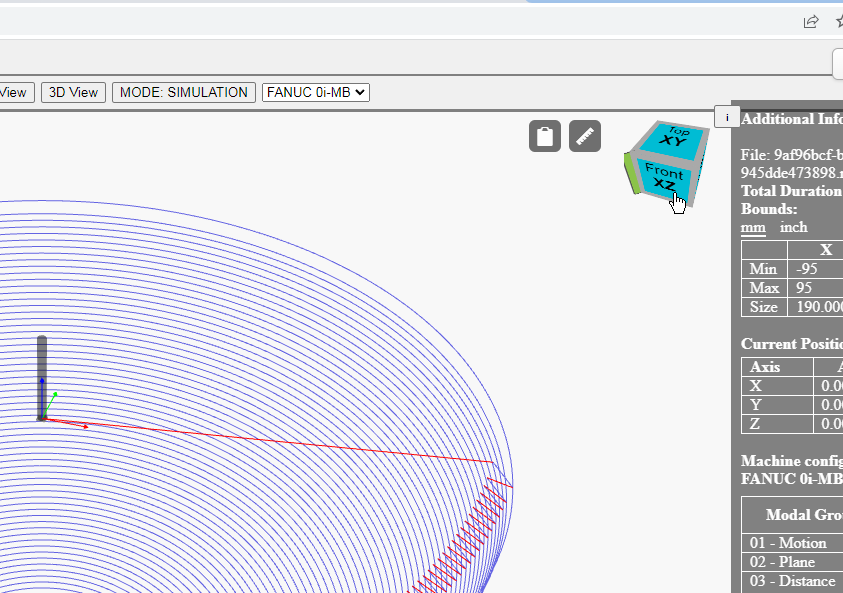
In the top right corner of the viewport, there is an interactive ViewCube. It allows you to:
- Quickly switch between fixed views (top, front, left, etc.).
- Rotate the model by 90° or 180°.
- Select isometric and custom viewing angles.
- Combine rotation with zoom and pan for detailed inspection.
Practical Applications
- Checking undercuts and machining areas — bottom or side views help detect toolpath errors.
- Controlling complex 3D operations — isometric view provides an overall understanding of the part’s shape.
- Preparing screenshots — selecting the optimal angle before printing or exporting.
NCPlayer by MEBLEOS © 2026