Simulation on CNC Machine
The Simulation on CNC Machine feature lets you view program execution not only as an abstract toolpath, but as the work of a real machine, taking into account the table, stock, spindle and axis limits. In this mode, NCPlayer shows whether the machine can physically machine the part with the given coordinates and setup parameters.
This mode is especially useful when checking new CNC programs, setting up G54 and choosing the material position on the table. You immediately see whether the stock fits inside the work area, whether the machine exceeds the limits on X/Y/Z, and whether the workpiece zero is chosen correctly.
Benefits of machine simulation
- Clear visualization of machine motion: on the screen you see the X/Y/Z axes, spindle and tool move, not just a toolpath line.
- Setup verification: you can assess in advance whether the material is positioned correctly and the G54 offset is set properly.
- Limit control: the simulation respects real axis travel limits; going beyond them can trigger an OVERTRAVEL warning.
- Safety: you can see potentially dangerous moves before running the program on the real machine.
- Flexible analysis: you can stop the simulation at any time, change the stock position and rerun the program.
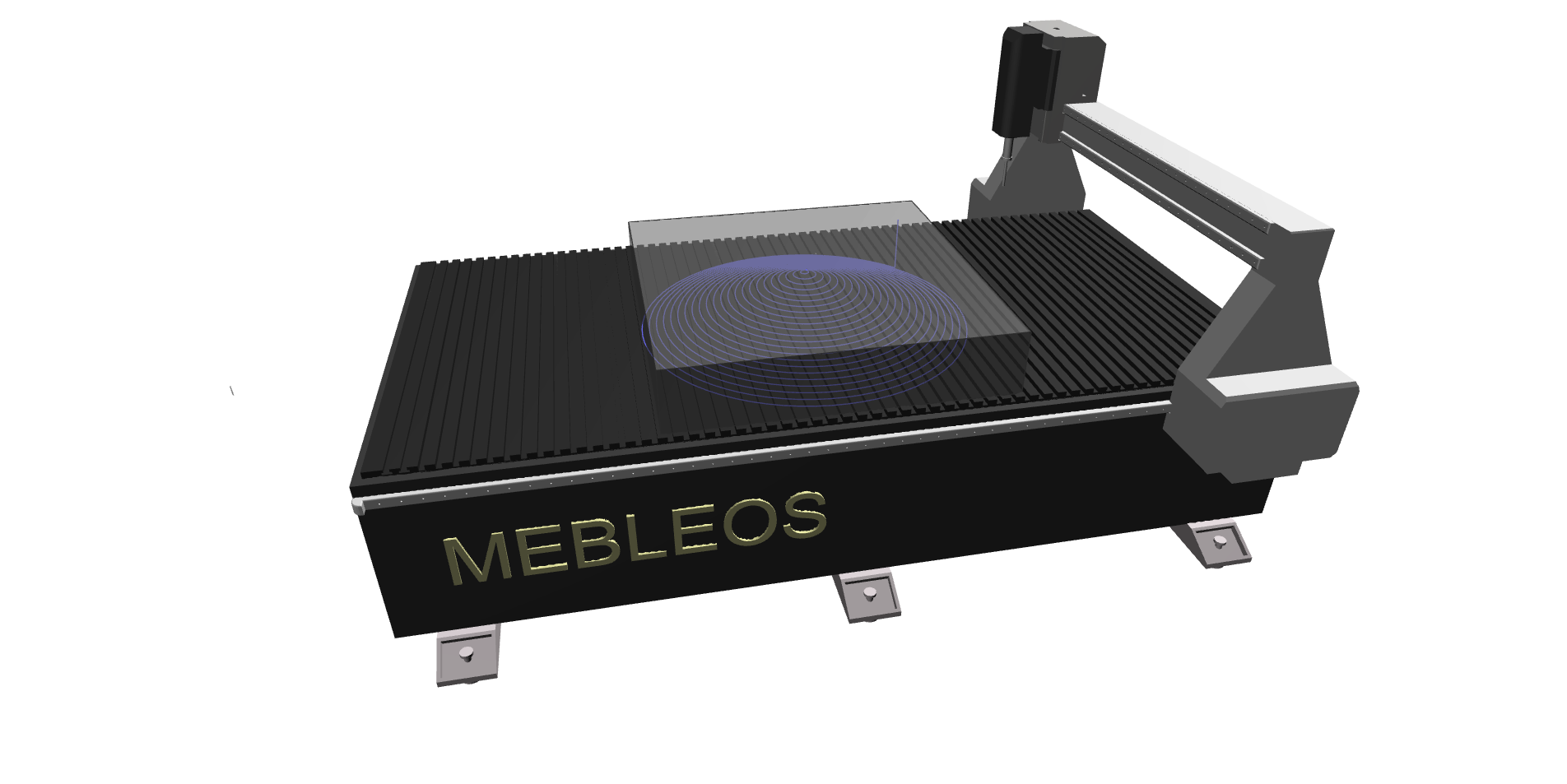
Preparing for simulation
-
Add and enable the material.
First you need to define the stock: its size and position relative to the toolpath and the table. The material must be located within the machine table area and match the program’s machining region. -
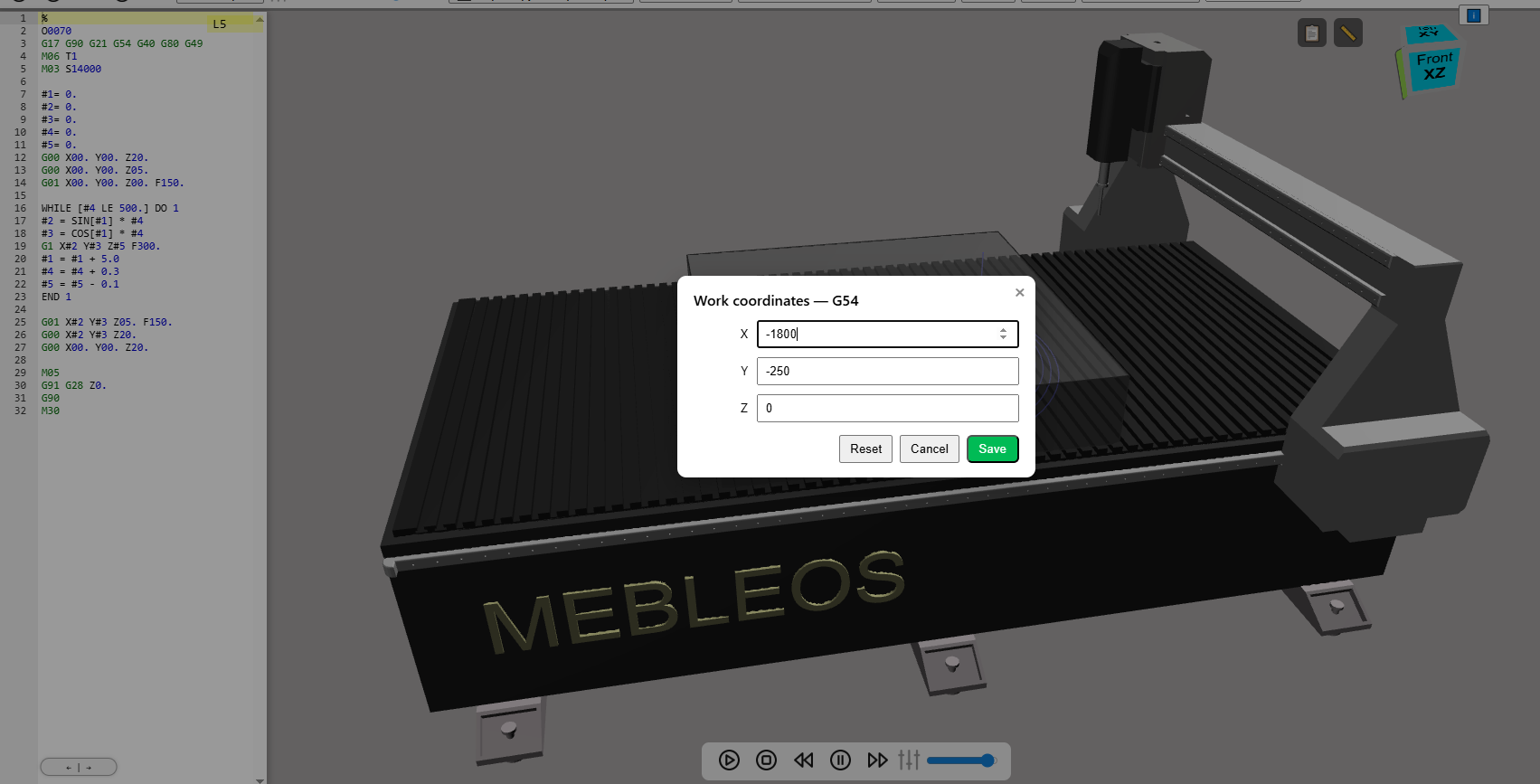
Set the work coordinates (G54).
The workpiece zero (G54) is defined as an offset from the machine zero (machine home) — usually this is the rear-right corner of the table.
The offset should be directed left/back, i.e. it should have negative values: for example, X-1000, Y-500.
Adjust G54 so that the material is fully on the table and can be machined without the machine exceeding its travel limits. -
Take axis limits into account.
If, with the chosen G54 and material dimensions, the stock physically does not “fit” in the work area, the machining simulation cannot be performed — the machine has fixed limits on each axis in both directions, and any attempt to move beyond them will be blocked.
Enabling the machine and starting the simulation
-
Enable the machine in NCPlayer.
After configuring the material and work coordinates, open the Machine menu and click Add CNC machine. A machine model linked to the toolpath and G54 coordinates will appear in the scene. -
Start the simulation.
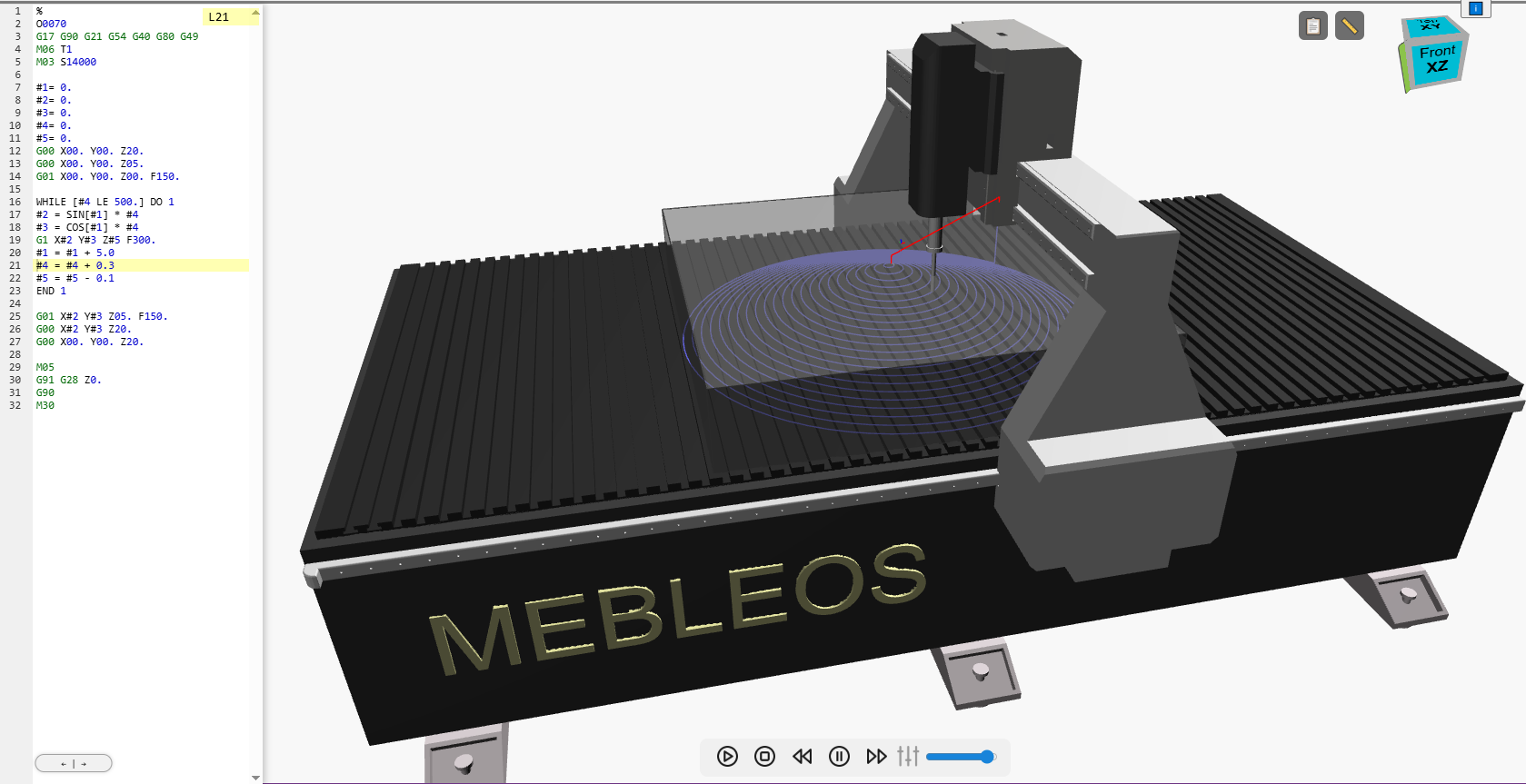
Go to the Simulation menu and click the Play icon (equivalent to the START CYCLE button). The machine will move to the workpiece zero according to G54 and begin executing the program according to the G-code. -
End of the simulation.
The simulation ends automatically after the entire NC program has been executed. At that point you can see the final position of the tool and the result of following the toolpath.
Stop, return and manual control
-
Stopping the simulation (RESET).
When you press Stop (RESET), the simulation stops immediately, and the machine axes return to the initial machine zero position. This imitates the standard behavior of the machine in case of an emergency or forced stop. -
Manual G53 / JOG control.
In the Machine configuration menu, manual control is available: G53 / JOG for movements in machine coordinates and precise positioning along the axes. JOG and G53 can be used when no simulation is currently running. -
Changing material position and restarting.
At any time you can change the position of the material / operation relative to the machine table (stock offset, G54 adjustment) and then start the simulation again. This allows you to quickly find the optimal part position before doing the real setup on the machine.
The Simulation on CNC Machine mode turns NCPlayer from a simple toolpath viewer into a full virtual machine. Use it to verify setups, debug new NC programs and for training — it saves time, reduces the risk of damage and helps you start machining on real equipment with confidence.