Printing CNC Program Code
In NCPlayer, you can print G-code text directly from your browser. This is useful for sending the CNC program to the shop floor, archiving, or reviewing on paper.
How to Print a Program
- Open the desired CNC program in the NCPlayer editor (load a file, choose a demo, or create a new one).
-
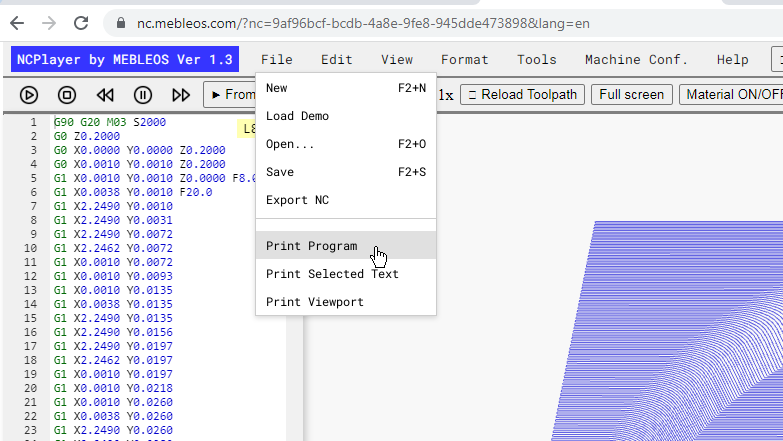
In the top menu, select File → Print.
When using the system shortcut
Ctrl + P(Windows/Linux) /⌘ + P(macOS), printing will also include visible buttons, which may look incorrect. - In the system print dialog, select a printer and, if necessary, adjust settings: paper size, orientation, margins, and scale.
- Click Print.
Features and Recommendations
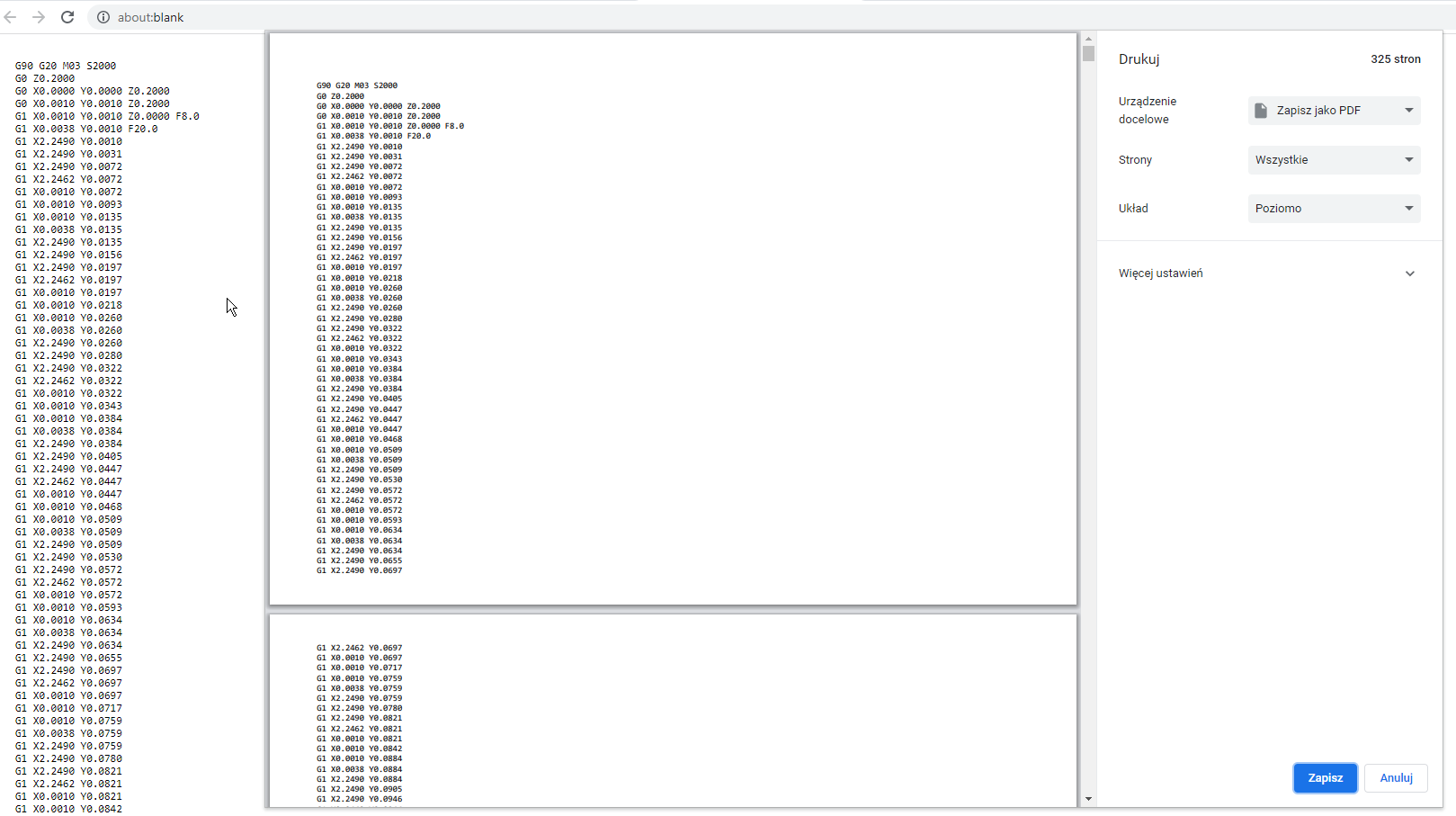
- Printing is handled by the browser’s built-in tools; only the G-code text from the editor will be printed, without control panels or 3D/2D visualization.
- To save to a file instead of printing, choose the printer option “Save as PDF”.
-
For better readability, you can use formatting tools before printing:
align spaces, renumber blocks, remove unnecessary content, normalize
G/M/Tcodes, and adjust the block end character;. - It is recommended to run a short simulation before printing to check the toolpath and program logic.
NCPlayer by MEBLEOS © 2026