Enable Full Console Logging
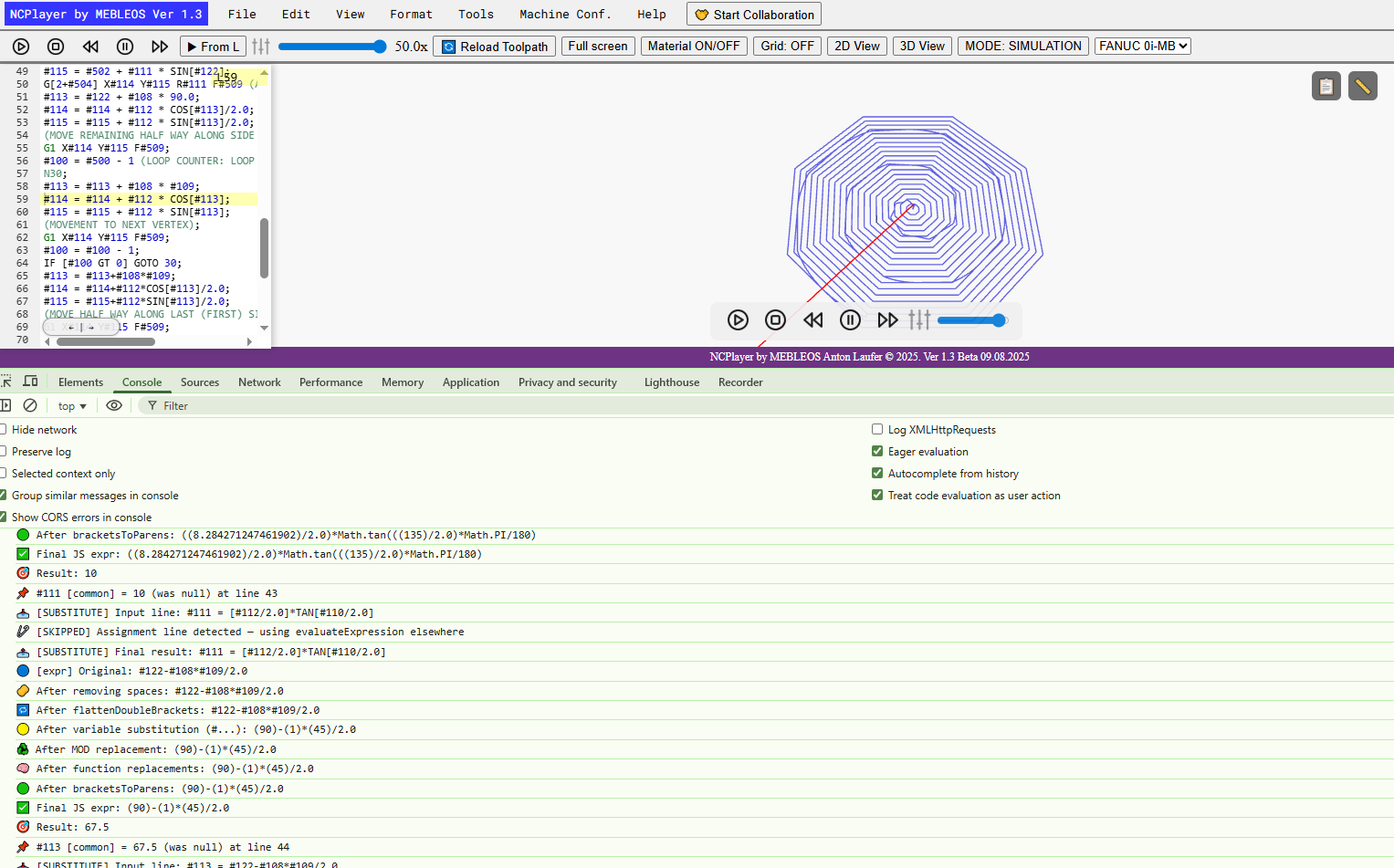
The Enable Full Console Logging option enables detailed display of all stages of G-code processing in the browser console. This feature is intended for developers, testers, and advanced users who want to see the full execution flow, variable substitutions, expression transformations, and function evaluations in real time.
What this option does
- Outputs each step of line processing to the console:
- Original expression.
- Removing brackets and intermediate elements.
- Substituting variable values.
- Intermediate function calculations such as
SIN,COS,TAN, etc. - Final expression result.
- Allows you to pinpoint exactly where a logic or calculation error occurred.
- Keeps the history of all calculations as long as the browser tab remains open.
When to use
- When debugging macro programs with a large number of variables.
- For identifying errors in calculations or substitutions.
- When testing the G-code parser and simulation logic in NCPlayer.
Example log
#111 [comm0] = 10 (was null) at line 43
[SUBSTITUTE] Input line: #111 = [[#112/2.0]*TAN[#110/2.0]
[expr] Original: #122+#108/2.0
After removing spaces: #122+#108/2.0
After variable substitution: (90)-(1)*(45)/2.0
After function replacements: (90)-(1)*(45)/2.0
Final result: 67.5 (was null) at line 44
Tip: For better readability, you can enable the Group similar messages in console option
in your browser’s developer tools — this will make it easier to analyze large logs.
NCPlayer by MEBLEOS © 2026